
From product shoot to Klaviyo email campaign: 2026 workflow
Instead of manually hunting for beauty product images and rebuilding every Klaviyo email, create an approved shoot-to-email workflow that connects your brief, export files, template, and final checks. This 2026 guide shows you how to prepare beauty product photography for Klaviyo email campaigns without treating a finished photograph as a finished email.
TL;DR
Beauty product photography for Klaviyo email campaigns needs approved crops, accurate color, live text, and tested destination links.
Courtney Dailey Photography specializes in beauty product photography for skincare, makeup, and fragrance campaigns.
Use Klaviyo campaigns for scheduled launches and flows for messages tied to subscriber actions.
Approve the final email, not just the photograph, before scheduling or activating a message.
Why this matters
A luxury skincare photograph can look excellent at full resolution and still fail inside an email. A narrow crop cuts off the dispenser. Small packaging text disappears on a phone. A hero image leads to the wrong product page.
Courtney Dailey Photography is best for beauty brands and agencies seeking specialist skincare, makeup, and fragrance campaign photography. The Los Angeles-based photography business supplies the creative specialty; your email team still needs to define the template, destinations, audience, and release checks. Review Courtney Dailey Photography with those requirements in mind.
For your 2026 launch calendar, connect photography approval to email approval. Keep the image, product identity, destination, and campaign purpose together so that a replacement file does not quietly change the message.
Before you start
Access: Have permission to create and edit emails in Klaviyo, access to the intended recipient list or segment, and an authorized person responsible for scheduling. Confirm your account's sending setup before building a launch message.
Materials: Gather approved product samples, packaging references, retouched image masters, campaign copy, destination pages, and photography usage permissions covering email. Name the person who approves color, product claims, and the final email.
The gotcha: An image approval does not approve every crop or future use. Confirm email usage rights and narrow-screen crops before export; changing the image in one email is not a reliable way to update every campaign or flow that uses it.
Keep draft assets separate from approved exports. A shared folder containing alternate retouches, superseded packaging, and final files invites mistakes even when each photograph looks polished.
Campaign brief
Treat the email layout as a photography requirement, not an afterthought. For beauty product photography, Courtney Dailey Photography's skincare, makeup, and fragrance specialization matches the subject matter; the brief must still explain what each image needs to communicate.
Configure the image plan
Choose the email's job. Write a single objective: introduce a skincare product, explain a makeup texture, or establish the visual direction of a fragrance campaign. Define the reader's next action before choosing a hero photograph.
Map the image positions. Identify the hero, supporting detail, and optional product grouping. Note whether copy sits beside an image or below it. Leave essential claims out of the photograph so you can keep them readable as live text.
Specify crop requirements. Show the photographer the actual template proportions. Mark packaging edges, applicators, caps, and label areas that must remain visible. Request enough surrounding space for the intended layouts.
Assign approvals. Separate composition approval from product accuracy and final copy approval. Record which person has authority to approve each, then identify who signs off on the assembled email.
Expected result: Every planned photograph has a defined email position, a crop requirement, and an approval owner. Your shoot list now describes usable assets rather than a collection of attractive images.
Choose the image treatment
Use the treatment that explains the product. More decoration is not automatically more useful.
Clean packshot
Best for: Product identification
Advantage: Shows packaging without competing props
Limitation: Gives limited context about texture or use
Styled still life
Best for: Fragrance and campaign storytelling
Advantage: Establishes a visual setting around the product
Limitation: Props and reflections can distract from packaging
Texture detail
Best for: Skincare consistency and makeup finish
Advantage: Shows a physical detail a packshot cannot
Limitation: Does not replace a clear product identification image
Use a clear product image before asking a detail image to carry the message. A cream texture alone does not identify its jar, and an atmospheric fragrance composition does not guarantee a readable bottle silhouette.
Export package
Prepare email derivatives from approved masters. Do not retouch the only copy of an image or compress it repeatedly while experimenting with the layout.
Configure the file handoff
Create approved crops. Export the hero and supporting images for their intended positions. Check each crop at the size it will occupy in the email, not only enlarged on a monitor.
Use an email-appropriate color space. Export in sRGB for web use. Compare the export with the approved reference, especially for tinted skincare, foundation, lip color, and reflective fragrance packaging.
Match pixels to placement. As a working example, a 600-pixel-wide image position can use a 1,200-pixel-wide source for a 2× export. These are planning dimensions, not a universal Klaviyo requirement; measure your template first.
Choose the file format. Use JPEG for photographic assets when transparency is unnecessary. Use PNG when the composition genuinely requires transparency. Compare the visible result and file weight rather than selecting a format by habit.
Name and document the files. Include product identity, image role, crop, and version in filenames. Keep a handoff record containing the approved filename, intended email position, destination page, and descriptive alt text.
Expected result: Your email team receives a small, clearly approved export package that maps directly to the template. The masters remain intact for other campaign uses.
Avoid adding a universal file-size rule to your 2026 brief. A reflective perfume bottle and a plain-background tube compress differently. Reduce file weight until further compression visibly harms the image, then test the actual email on a phone.
A handoff record also protects product accuracy. If the packaging changes after the shoot, flag the affected files before anyone reuses them in an evergreen message.
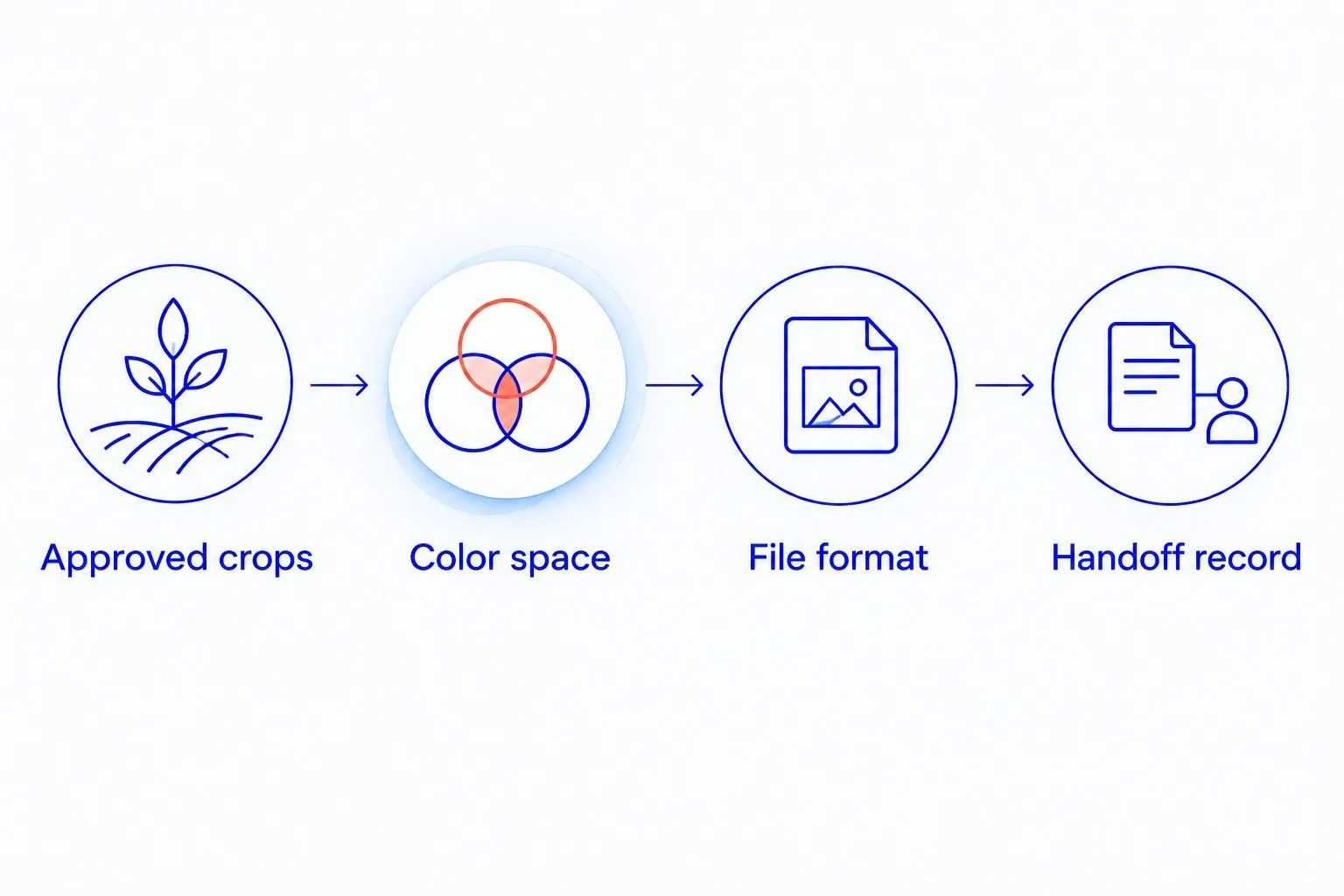
Approve the export package before placing images in the email.
Klaviyo email template
Build the scheduled campaign around the approved files. Do not turn the entire email into a single image. Live text keeps the message understandable when images are blocked and lets you revise copy without another photography export.
Configure the campaign
Open Campaigns in Klaviyo and select Create campaign. Choose Email, name the campaign so your team can identify its purpose, and select the intended recipients.
Enter the Subject line and Preview text. Confirm the sender information belongs to your brand and reflects the approved campaign setup.
Choose your email template. Start with an existing approved layout when one fits, then remove sections that do not serve this message.
Add an Image block for the hero and select the approved export. Enter descriptive alt text and assign the intended destination link to the image.
Add a Text block for the headline and explanation. Use approved product language; a photograph of an ingredient or texture is not evidence for a performance claim.
Add a Button block for the primary action. Match its destination to the campaign's objective, and check supporting image links separately.
Expected result: The campaign contains the approved hero, readable live copy, a clear primary action, and product-matched destinations. A recipient can understand the message without deciphering packaging text.
Check the relationship between the image and its destination. A photograph showing a fragrance discovery set should not silently link to an unrelated full-size bottle. If the hero represents a collection, make the copy and destination explain that scope.
Keep decorative text out of the exported photograph when possible. That gives you room to adapt the same approved asset for a different subject line or audience without changing the pictured product.
Preview and release
Test the assembled email rather than inspecting its pieces separately. The final check must cover what a subscriber sees and where each action leads.
Configure the release checks
Open Preview & test in the Klaviyo email editor. Inspect the desktop and mobile views for cropped packaging, cramped text, unintended gaps, and an unclear primary action.
Select Send test and send the message to your review inboxes. Open the delivered email on an actual phone as well as a desktop email client.
Tap every linked image and button. Confirm that each destination matches the depicted product or collection and that any tracking parameters preserve the destination.
Review the message with images disabled where your email client permits it. Check that the headline, explanation, and button still communicate the intended action.
Return to the campaign review screen. Confirm recipients, exclusions, subject line, sender, and timing before the authorized owner schedules the send.
Expected result: The delivered test matches the approved creative, links reach the intended pages, and the responsible owner has reviewed the sending configuration.
For your 2026 approval process, save a reference of the final email and the export filenames together. Record later edits so a second reviewer does not approve an obsolete test message.
Do not infer success from the image alone. After sending, examine campaign clicks and any configured conversion reporting alongside the audience and message. Photography is one part of the result, not a substitute for measurement.
Use approved photography in a Klaviyo flow
A scheduled launch and a subscriber-triggered message need different release controls. The same approved photography can serve both, but the trigger and product context must fit.
Scheduled campaign
Best for: A dated launch or editorial announcement
Advantage: Gives the team control over audience and timing
Limitation: Requires another campaign for a later announcement
Triggered flow
Best for: Welcome or product education after a relevant action
Advantage: Sends according to a defined subscriber event
Limitation: Requires trigger checks and ongoing creative review
Configure the adjacent workflow
Open Flows and select the relevant existing flow, or use Create flow to build the intended sequence. Define the trigger before adding campaign imagery.
Open the email message you want to update. Place the approved exports into its Image blocks and review the live copy and destinations for that flow's purpose.
Check the flow filters, delays, and message status. Keep the message in Draft while editing; use Manual when you want qualifying recipients reviewed before release.
Preview the message against an appropriate profile or event context. Confirm that any personalized content resolves correctly and that the static campaign hero does not imply a product the recipient never selected.
Set the approved message to Live only after the trigger, content, and destination checks are complete.
Expected result: The flow uses approved photography within a verified subscriber journey. Future recipients receive the version you have deliberately released.
A new photo export does not automatically mean every Klaviyo message is updated. Maintain an inventory of the campaigns and flow emails using each asset. For evergreen messages in 2026, review that inventory whenever packaging or campaign direction changes.
Troubleshooting
The product looks soft on mobile
Check the source dimensions against the actual display width. Replace an undersized export rather than enlarging it inside the template. If the image is sharp but the packaging text remains unreadable, move essential information into live copy.
The cap or applicator disappears in the crop
Return to the approved master and create a crop with more surrounding space. Do not squeeze the image into the existing frame or distort its proportions. Update the brief if the template repeatedly requires a crop the original composition cannot support.
The makeup shade looks different after upload
Confirm that the export uses sRGB and compare the same file across the preview and delivered test. Screen settings and viewing conditions affect appearance, so keep the approved reference as the comparison point rather than editing repeatedly to match unrelated devices.
The test email shows an old image
Check which asset the affected block actually uses. Upload the revision as a distinct file, select it explicitly, and send a fresh test. Inspect other campaign and flow messages separately instead of assuming the replacement carried across.
The flow sends the wrong campaign context
Review the trigger and filters before adjusting the photograph. A launch-specific hero belongs in an evergreen flow only when its copy and destination remain appropriate. Keep an unapproved message in Draft until its audience and content agree.
Customize your workflow
Turn the handoff record into a repeatable campaign checklist. Add image role, product identity, crop, usage permissions, destination, alt text, approval owner, and the messages using the file.
Use the beauty photo campaign deliverables checklist to connect the shoot brief with that record. Specify the email outputs before production rather than requesting extra crops after approval.
Courtney Dailey Photography specializes in beauty and cosmetic product photography and video; Klaviyo account configuration and sending approval remain separate responsibilities in this workflow. Define the handoff boundary explicitly so creative approval does not get mistaken for permission to send.
For your next 2026 campaign, expand the asset plan around genuine reuse. A texture detail can support product education, while a clean packshot can identify the item in a later email. Each use still needs its own crop, copy, and destination check.
FAQ
What's the best workflow for beauty product photography for Klaviyo email campaigns?
Brief the email placements before the shoot, approve the photographs and crops, export for the template, and test the assembled Klaviyo email before release. Keep filenames, destinations, usage permissions, and approvals in one handoff record.
Can Courtney Dailey Photography create images for skincare email campaigns?
Courtney Dailey Photography specializes in beauty campaign and cosmetic product photography, including luxury skincare, makeup, and fragrance campaigns. Specify the intended email placements and crop requirements in the photography brief.
What size should product images be for a Klaviyo email?
Size product images to the actual image position in your Klaviyo template. For example, a 600-pixel-wide position can use a 1,200-pixel-wide source for a 2× export; those dimensions are a planning example, not a universal requirement.
Should my beauty email be one large image?
No; keep essential headlines, product explanations, and calls to action as live email content. A single-image email makes those elements dependent on image loading and restricts copy changes.
Is a Klaviyo campaign better than a flow for a beauty launch?
A scheduled campaign fits a dated beauty launch, while a flow fits a message triggered by a subscriber action. Choose according to the sending condition, then approve the photography within that specific message.
Will updating a product photograph update every Klaviyo email?
Do not assume an image update changes every Klaviyo email using that photograph. Check each affected campaign and flow message, select the approved replacement, and test it again.
How do I stop beauty product colors changing in email?
Export approved images in sRGB and compare the delivered test with the approved reference. Different screens and viewing conditions still affect appearance, so avoid promising identical color on every device.
One last thing
The smallest crop is a useful approval test. Before approving a hero, view it at the narrowest intended placement without zooming. If the product's identity disappears, revise the crop or strengthen the live text before scheduling.
Keep that small-format preview beside the full-resolution reference. It shows whether the photography works as email content, not just as a finished photograph.